Upload an image, screenshot, scan, or document page and let Deep OCR extract the visible text. After recognition, you can review the result, clean messy formatting, and copy or export the text for notes, documents, AI tools, or everyday workflows.
supported formats: JPG, PNG, GIF, WebP images, max size: 10MB
Image Text Extractor — Extract Text from Photos and Images
An Image Text Extractor helps you turn visible text inside an image into editable, copyable text. It is designed for everyday image OCR tasks such as extracting text from photos, product labels, posters, receipts, signs, menus, book pages, and scanned images.
Core Highlights of Image Text Extractor
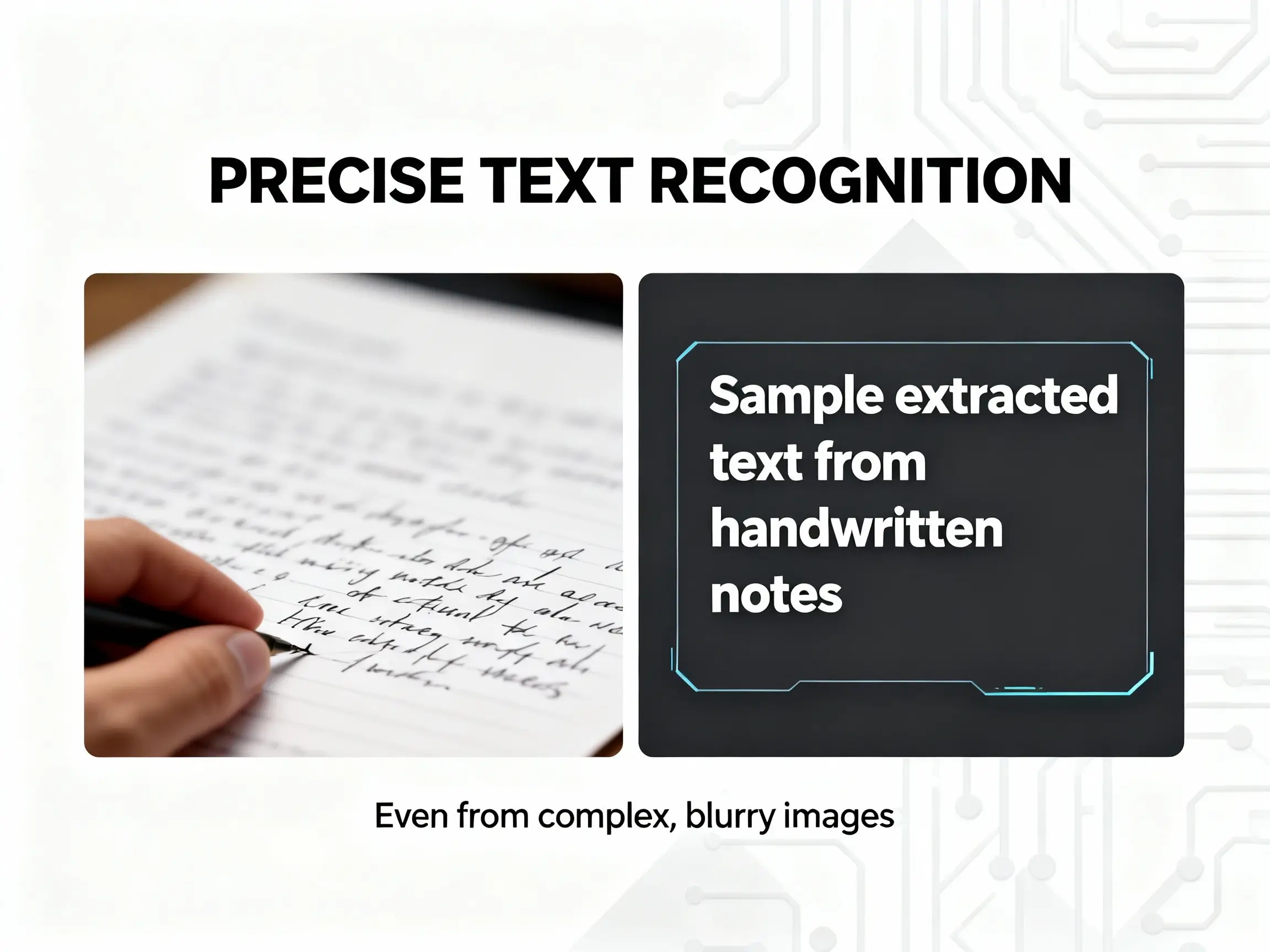
An Image Text Extractor is most useful when the original file is a photo or image rather than a selectable document. The source may be a picture of a sign, a receipt from a store, a label on a package, a poster on a wall, or a scanned image of printed material.
This image-to-text workflow follows a practical path: upload the image, extract visible text, compare the result with the source, clean formatting issues, and reuse the output where plain image content would be hard to work with.
Extract Text from Photos and Printed Images
Photos often contain useful text that is not selectable. A product photo may include a label, a poster may include event details, and a receipt image may contain dates, totals, item names, or store information. This Image Text Extractor helps extract that visible text so it can be reviewed and reused.
For better results, use images where the text is readable, well-lit, and not heavily distorted. If the photo is blurry, tilted, shadowed, or cropped too tightly, the extracted text may need more review.
Review Image OCR Results Before Reuse
Image OCR can produce useful results, but users should still review the output before relying on it. Small text, stylized fonts, curved surfaces, low contrast, and compressed images can affect recognition quality.
The review step is especially important for names, numbers, prices, dates, URLs, addresses, product codes, and short labels. These details can change meaning if one character is misread.
Clean Text for Editing, Translation, and Notes
Raw OCR output may include broken line breaks, extra spaces, awkward paragraph splits, or formatting noise. A cleaner text result is easier to copy, edit, translate, summarize, or save.
This makes Image Text Extractor useful when you need to move content from an image into Google Docs, Notion, spreadsheets, AI tools, translation tools, support tickets, study notes, or personal records.
Image OCR for Everyday Visual Documents
Image-based text appears in many places: receipts, labels, posters, menus, book pages, packaging, signs, certificates, classroom materials, and scanned paper documents. These sources are not always complex, but manually retyping them can still waste time and introduce mistakes.
This workflow helps reduce that manual work by turning visible image text into a reviewable result. It is especially useful when you need a quick text version of information that would otherwise stay locked inside an image.
Why Use This Image Text Extractor
Image OCR should not stop at recognition. The extracted result should be easy to check, clean, copy, and reuse.
Built for Image-Based Sources
This page is focused on image files, not every OCR task. Use Image Text Extractor when the source is a photo, poster, label, sign, receipt image, scanned image, or other visual file where the text is part of the image.
If your file is a PDF and you only need plain text, use PDF Text Extractor. That keeps the PDF workflow separate from image OCR and helps you choose the right tool for the source file.
Useful for Photos, Labels, Posters, and Receipts
Different image sources create different OCR challenges. A receipt may have small numbers and item rows. A label may have product codes and short text blocks. A poster may combine large headings with smaller event details. A scanned image may include paragraphs, stamps, or page edges.
The value of this workflow is not only extraction. It gives you a reviewable text result so you can check the output against the original image before using it in records, listings, reports, translations, or notes.
Better Output Starts with Better Review
A clean result depends on both recognition and review. This tool makes review part of the process instead of hiding it. You can compare the original image with the extracted text and decide whether the result is ready to copy, edit, or export.
This is useful when the image includes critical details such as prices, names, numbers, dates, locations, addresses, coupon codes, serial numbers, or URLs.
Clear Boundary from Screenshot OCR
An Image Text Extractor is best for image files such as photos, labels, posters, receipts, signs, and scanned images. If your source is an app screen, chat capture, website screenshot, error message, UI panel, or code screenshot, use Screenshot to Text instead.
This separation keeps the image OCR workflow focused on real-world visual sources, while screenshot OCR can focus on digital screen captures and UI text.
Supports Reviewable Text for Downstream Work
Once text is extracted from an image, users often need to do something else with it. They may translate it, summarize it, paste it into a document, collect product information, create notes, prepare a support reply, or use it as source material for an AI-assisted task.
The value is not just extracting characters. The value is turning image content into something you can work with.
A Practical OCR Workflow for Scanned Images
Scanned images often contain printed documents, letters, forms, pages, or records saved as image files. This workflow can help turn scanned images into editable text when the text is visible and readable.
If the scanned image contains handwriting, use Handwritten to Text Converter for a more focused workflow. Handwritten content usually needs more review than printed text because writing style, spacing, and image quality can affect the result.
Common Uses for Image Text Extractor
Image Text Extractor is useful when you need to recover text from visual content without retyping it manually. The most common use cases involve short or medium-length text that appears inside photos, printed materials, and scanned images.
Extract Text from Photos
Photos can contain signs, labels, product information, book pages, whiteboards, posters, menus, or printed instructions. This image OCR workflow helps extract the visible text so it can be copied, searched, translated, or saved.
Use it when the text is readable in the photo but not available as selectable text. Before using the result, check small words, line breaks, numbers, and any text near image edges.
Extract Text from Labels and Product Images
Labels often contain compact information such as product names, ingredients, model numbers, serial numbers, usage instructions, warnings, and packaging details. Image Text Extractor can help turn label text into a reviewable result.
Because labels may include small print, curved surfaces, or reflective packaging, the extracted text should be checked carefully before being used in records, listings, reports, or translations.
Extract Text from Posters, Flyers, and Signs
Posters, flyers, and signs often mix large headings with smaller details such as dates, addresses, contact information, schedules, and calls to action. This tool helps capture the text so it can be copied into notes, event pages, messages, or planning documents.
For these images, review layout-sensitive details such as dates, locations, phone numbers, and URLs. OCR can read visible text, but the user should confirm that important details match the original image.
Extract Text from Receipts and Simple Records
Receipt images and simple records often contain prices, totals, dates, store names, tax lines, item names, and payment details. Image Text Extractor can help extract the visible text so users can review it before entering information into a spreadsheet, accounting note, reimbursement form, or personal record.
Receipt OCR results should always be checked for numbers, decimals, currency symbols, and totals. These details are easy to misread when the image is faded, folded, or captured under poor lighting.
Extract Text from Scanned Images
A scanned image may contain printed pages, letters, study materials, forms, or archived documents. This workflow helps convert visible text from scanned images into editable content that can be copied, searched, summarized, or stored.
For longer scanned pages, review paragraph breaks and reading order. If the source is a multi-page PDF instead of an image file, a PDF-specific extraction workflow will usually be more suitable.
How Image Text Extraction Works
This workflow gives you a reviewable image-to-text result instead of a plain text dump. After uploading an image, you can compare the extracted text with the original source, clean formatting issues, and copy or download the result.
Upload an Image File
Start with a JPG, PNG, GIF, or WebP image that contains readable text. The source can be a photo, scanned image, label, poster, receipt, sign, or other image-based document.
Extract Visible Text
The tool reads the text visible in the image and displays the result beside the source. This helps you check whether important details were recognized correctly before copying the output.
Clean the Result
Raw image OCR may include extra spaces, broken lines, repeated fragments, or awkward formatting. Clean Text helps make the output easier to read, edit, translate, summarize, or paste into another tool.
Copy or Export the Text
Once you review the result, you can copy the extracted text or export it for your next workflow. The output can be used in notes, documents, spreadsheets, translation tools, AI prompts, or internal records.
Image Text Extractor vs Other OCR Workflows
Choosing the right OCR workflow helps avoid confusion and gives users a better result. Image Text Extractor is best when the source is an image file and the text is part of the image.
Image Text Extractor
Use Image Text Extractor for photos, labels, posters, receipts, signs, scanned images, and other image files where visible text needs to become editable text. This is the right workflow when the source is image-first.
Screenshot OCR
Screenshot OCR is better when the source is a screen capture from an app, website, chat, error message, UI panel, or software interface. These images often contain digital text, interface elements, and screen-specific layouts.
PDF OCR
PDF OCR is better when the source is a PDF file, especially when it contains multiple pages or scanned document pages. A PDF workflow can handle page-based extraction more clearly than a general image upload workflow.
Handwriting OCR
Handwriting OCR is better when the source contains handwritten notes, whiteboard photos, journal pages, or other handwritten content. Handwriting usually requires more review than printed image text.
When Image Text Extractor Works Best
Image Text Extractor works best when the text is visible, readable, and not heavily distorted. Photos of printed text, product labels, posters, signs, receipts, book pages, and scanned images usually produce more useful results when the image has good lighting and enough resolution.
The tool is most useful when you need to copy text from an image, prepare text for translation, save information from a photo, move printed material into notes, or create a reviewable text version of an image-based source.
For better results, use an image where the text is not too small, the contrast is clear, and the important content is not cut off. If the image contains numbers, names, dates, or URLs, compare the extracted text with the original before using it.
When Image OCR Results Need Review
Image OCR results may need manual review when the source image is blurry, tilted, compressed, shadowed, low contrast, cropped, or visually crowded. Review is also important when the image contains small labels, curved packaging, decorative fonts, tables, handwriting, or text over a complex background.
Always check details that can change meaning if one character is wrong. This includes prices, dates, names, addresses, URLs, product codes, serial numbers, quantities, and receipt totals.
This review-first approach is part of the broader Deep OCR workflow, where OCR output is treated as editable text that should be checked, cleaned, and reused carefully.
Image Text Extractor FAQs
An Image Text Extractor is an OCR tool that extracts visible text from image files and turns it into editable, copyable text. It is designed for photos, labels, posters, receipts, scanned images, signs, and other image-based sources.
Upload an image that contains readable text. The tool will extract the visible text and show the result beside the original image so you can review, clean, copy, or export the output.
Yes. You can extract text from a photo when the text is visible and readable. Photos with clear lighting, good focus, and enough contrast usually produce easier-to-review results.
Yes. This tool can help extract text from labels, posters, receipts, signs, menus, and other image-based sources. Review important details such as numbers, dates, prices, names, addresses, and URLs before using the result.
The upload area supports JPG, PNG, GIF, and WebP images, with the file size limit shown on the page.
No. Image Text Extractor is focused on photos, labels, posters, receipts, signs, and scanned images. Screenshot to Text is better for app screens, chats, websites, error messages, UI panels, and other screen captures.
No. Image Text Extractor is for image files. PDF Text Extractor is for PDF files, especially scanned, locked, or image-based PDFs where the goal is searchable or editable text.
It can help when the handwriting is clear, but handwritten content usually needs more review than printed text. For a dedicated handwriting workflow, use a handwriting-specific OCR page.
Yes. After extracting text from an image, you can review and copy the result into translation tools, AI prompts, notes, documents, spreadsheets, or internal workflows.
Use a clear image with readable text, good lighting, and enough resolution. Avoid heavy blur, strong shadows, extreme angles, cropped words, and text over complex backgrounds. Review names, numbers, URLs, and small text before relying on the output.
Start Extracting Text from Images
Use Image Text Extractor when text is locked inside a photo, label, poster, receipt, sign, or scanned image. Upload an image, review the extracted text, clean the result, and copy or export it for editing, translation, notes, documents, or AI-assisted workflows.