Upload an image, screenshot, scan, or document page and let Deep OCR extract the visible text. After recognition, you can review the result, clean messy formatting, and copy or export the text for notes, documents, AI tools, or everyday workflows.
supported formats: JPG, PNG, GIF, WebP images, max size: 10MB
Deep OCR: Free Extract Clean Text from PDFs, Images & Screenshots
Deep OCR is an OCR and document preparation tool for people who need more than raw text recognition. It helps you extract text from visual documents, review the result beside the original file, clean common formatting issues, and reuse the output as editable text, Markdown, or table-ready content.
Use Deep OCR when text is visible but difficult to copy, edit, search, organize, or move into another workflow. It is useful for screenshots, scanned pages, image-based documents, photos of printed text, and PDF-related OCR workflows.
Built for Real-World Document Extraction
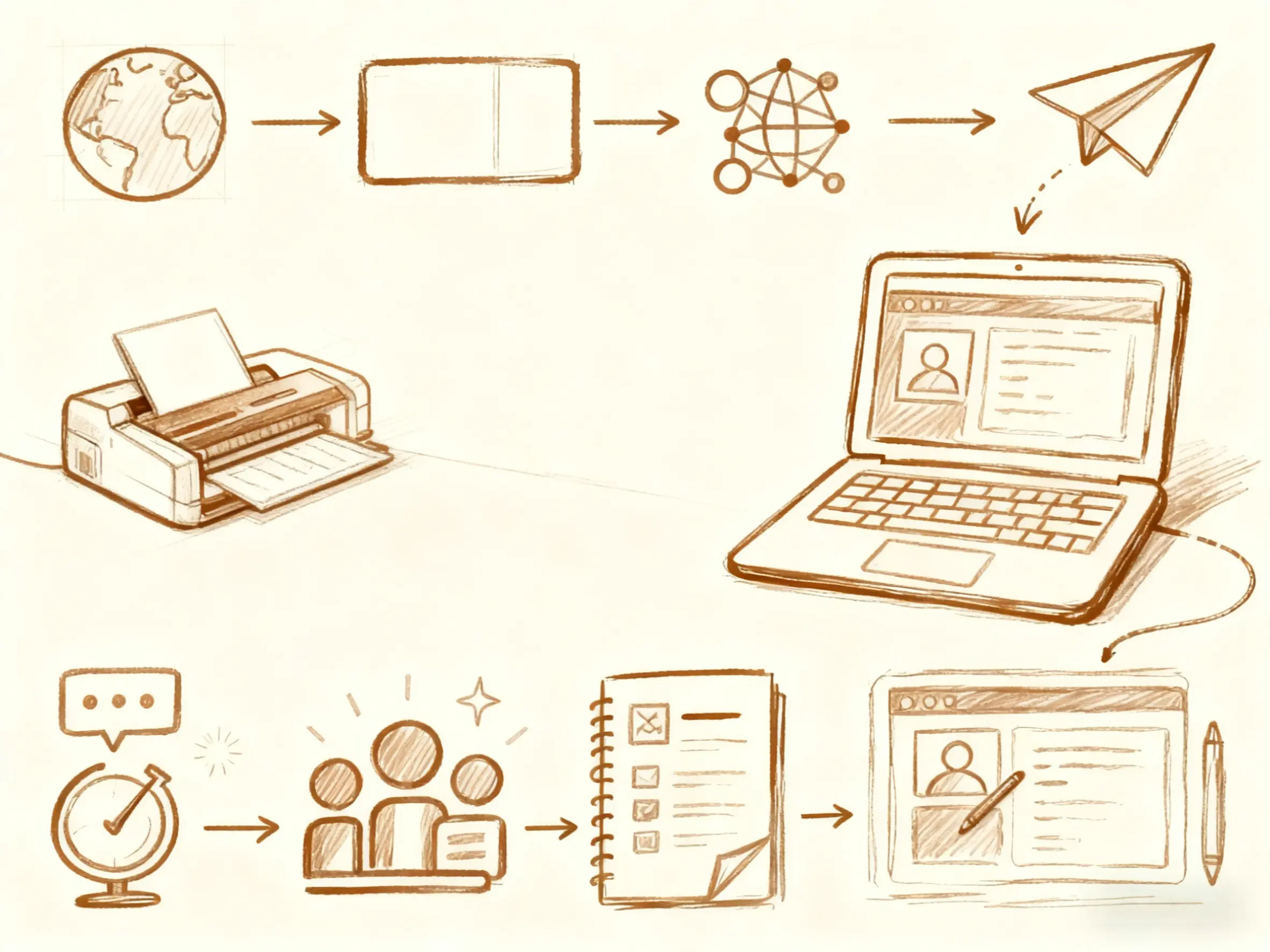
Deep OCR is built for practical document work, not just one-time text copying. Many OCR results need a second step before they are useful: broken lines need to be fixed, extra spaces need to be removed, URLs and numbers need to be reviewed, and document structure may need to be preserved.
Deep OCR focuses on the full path from extraction to reuse. You can extract visible text, compare it with the source file, choose a cleaner output mode, and copy or export the result for your next step.
Use Deep OCR when you need to turn visual content into reusable text for notes, reports, research, AI-assisted work, documentation, or internal workflows.
Common Deep OCR Workflows
Deep OCR can support different OCR workflows depending on the source file and the output you need. A receipt image, a handwritten note, a dashboard screenshot, and a scanned study page should not be handled in the same way. The goal is to extract visible text, make the result easier to review, and prepare it for reuse.
Receipt and Invoice Text Extraction
A receipt, invoice image, or payment document can contain names, dates, totals, line items, and small printed text. Deep OCR helps extract the visible content so you can review key details before moving them into a spreadsheet, note, or document workflow.
This workflow is useful for receipts, invoice screenshots, payment records, shipping labels, and simple table-like documents. For these files, Clean Text or table-ready output is usually easier to review than a raw OCR result.
Before reuse, check totals, dates, invoice numbers, line items, and small footer text against the original file.
Handwritten Note Conversion
Handwritten notes often need review after OCR because writing style, spacing, and page quality can affect the result. Deep OCR can help turn readable handwritten content into editable text while keeping the original image available for comparison.
This workflow is useful for study notes, meeting notes, whiteboard photos, journal pages, and handwritten reminders. For handwriting, Clean Text is usually the best starting point.
Before copying the result, review names, numbers, abbreviations, and unclear words.
Chart and Dashboard Text Extraction
Charts, reports, and dashboard screenshots often combine labels, numbers, legends, and table-like data. Deep OCR can help extract visible text from these materials so the result can be reviewed, summarized, or moved into notes and reports.
This workflow is useful for report screenshots, chart labels, dashboard screenshots, financial summaries, and table-like report pages.
Before using the output, check numbers, decimal points, currency symbols, row labels, and chart legends against the original file.
Study Page and Formula Text Review
Academic pages, technical documents, and study materials may include equations, symbols, captions, and surrounding explanatory text. Deep OCR can help extract readable text from these materials and prepare it for review or note-taking.
This workflow is useful for study pages, technical screenshots, academic notes, formula-heavy documents, and scanned learning material.
For formula-heavy content, Raw OCR can be useful for comparison before switching to Clean Text or Markdown. Always compare symbols, subscripts, superscripts, and equation spacing with the original file before reuse.
Why Choose Deep OCR?
Deep OCR is designed around the real problem that comes after OCR: making the extracted result usable. Basic OCR tools usually stop after text recognition. Deep OCR focuses on helping users review, clean, structure, and export the result for real work.
Cleaner OCR Output
Long OCR output is hard to reuse when it contains broken paragraphs, repeated spaces, unwanted tags, or noisy line breaks. Deep OCR helps make extracted text easier to read and prepare for downstream use.
Use this when you want to clean copied OCR text, prepare text for summarization, move extracted content into notes, or reduce formatting noise before editing.
Layout and Structure Review
Many visual documents include more than plain paragraphs. They may contain headings, lists, tables, captions, columns, footers, URLs, and small text. Deep OCR helps users review the extracted content and choose a cleaner output mode based on the source layout.
When document structure matters, Markdown output can help preserve headings, paragraphs, lists, and readable sections instead of turning everything into a plain text block.
Review OCR Results Before Reuse
OCR results should be reviewed before they are used, especially when the source includes small text, low contrast, dense layouts, handwriting, tables, numbers, names, or URLs. Deep OCR places the original file and extracted result close together so users can compare the output before copying or exporting it.
Deep OCR is not designed to hide review work. It is designed to make review easier.
Flexible Output Modes
OCR workflows vary by user. Some people need quick text copying. Others need Markdown, table-ready output, or raw OCR for manual review. Deep OCR supports multiple output paths so users can choose the result format that matches their next step.
Common workflows include screenshot to clean text, PDF page to Markdown, image to editable text, scanned document to searchable text, and OCR result to AI prompt source material.
Support for Different Visual Documents
Visual documents can include text, numbers, links, tables, labels, document sections, and image-based layouts. Deep OCR helps extract visible text and prepare the result for practical use in documents, notes, research, AI tools, or internal workflows.
Use Deep OCR for screenshots, scanned pages, photos of printed text, PDF-related OCR, image-based documents, language-specific OCR tasks, and readable handwritten notes.
Choose the Right Output Mode
Different files need different output modes. A screenshot may only need clean text. A PDF page may need Markdown. A table image may need table-ready output. A dense document may need raw OCR first so the result can be reviewed.
Deep OCR supports a flexible preparation flow across Raw OCR, Clean Text, Markdown, and table-ready output. This helps users avoid treating every document as the same kind of OCR task.
Who Deep OCR Is For
Deep OCR is useful for people who need to move text out of visual formats and into real workflows. Instead of treating OCR as the final result, Deep OCR treats extraction as the first step in preparing content for reuse.
Researchers often work with PDFs, scanned pages, screenshots, paper notes, historical documents, and mixed-language sources. Deep OCR helps turn visible text into editable content that can be reviewed, cleaned, and moved into research notes or AI-assisted analysis.
Researchers can use Deep OCR to turn scanned pages, source screenshots, and PDF excerpts into reviewable notes or Markdown.

For Researchers
Analysts often need to extract text from reports, dashboards, screenshots, receipts, tables, and PDF pages. Deep OCR helps prepare readable text that can be checked against the original file before being copied into spreadsheets, reports, or AI tools.
Analysts can use Deep OCR to review dashboard text, extract labels from report screenshots, and prepare source material before summarizing or documenting findings.

For Analysts
Students and knowledge workers often capture information from slides, PDFs, book pages, lecture screenshots, study notes, and web images. Deep OCR helps turn these materials into clean text or Markdown for study notes, summaries, and personal knowledge bases.
Deep OCR is useful when study material is visible but not easy to copy, edit, or organize.

For Students & Knowledge Workers
Operators, HR teams, support teams, and small businesses often receive information in screenshots, scanned PDFs, forms, labels, resumes, receipts, or image-based documents. Deep OCR helps reduce manual retyping and makes the extracted result easier to review and reuse.
Small teams can use Deep OCR to prepare text from resumes, forms, shipping labels, receipts, and screenshots before moving the content into documents or internal tools.

For Operators and Small Teams
Multilingual documents may include mixed scripts, translated content, screenshots from apps, menus, product labels, or scanned pages. Deep OCR helps extract visible text so it can be copied, reviewed, translated, summarized, or saved.
Use Deep OCR when multilingual text is trapped inside screenshots, scanned pages, app images, or document photos.

For Multilingual Text Work
AI tools can often read documents directly, but users still need clean source text when they want to review, edit, store, reuse, or move content across tools. Deep OCR helps prepare a cleaner intermediate result before summarizing, rewriting, analyzing, or saving content.
Deep OCR is useful when you want to keep a reviewable text version before using the material in ChatGPT, Claude, Notion, Obsidian, a CMS, or a knowledge base.

For AI-Assisted Workflows
How Deep OCR Works
Deep OCR gives you a reviewable extraction result instead of a plain text dump. After uploading a file, you can compare the extracted text with the original source, choose a cleaner output mode, and copy or download the version that fits your next step.
Upload a Visual Document
Start with a screenshot, scanned page, photo, or image-based document. Deep OCR is useful when the text is visible but difficult to select, copy, search, or reuse.
Review the Extracted Text
The original file and extracted result are shown together, so you can check important details before using the text. This is especially helpful for small text, names, numbers, dates, URLs, and table-like content.
Clean the Formatting
Switch to Clean Text or Markdown when the raw OCR result contains broken lines, extra spacing, unwanted tags, or paragraph issues. Clean output is easier to copy into notes, documents, AI tools, or internal workflows.
Copy or Export the Result
Copy the cleaned result, download a TXT file, or export Markdown for notes, documents, AI tools, or everyday workflows. You can keep Raw OCR when you need to compare the original extraction with the cleaned version.
Popular Deep OCR Tools
Choose a dedicated OCR workflow when your task is more specific than general text extraction.
Deep OCR FAQs
Deep OCR extracts visible text from screenshots, scanned pages, photos, and image-based documents. After extraction, you can compare the result with the original file, clean messy formatting, and copy or download the output as editable text or Markdown.
A basic OCR tool usually stops after text recognition. Deep OCR focuses on what happens next: reviewing the result, cleaning messy formatting, choosing the right output mode, and exporting text in a format that is easier to reuse.
Yes. Deep OCR can help you prepare cleaner source text before using AI tools. This is useful when you want to review the extracted content, remove formatting noise, or convert a PDF, screenshot, or scanned page into text or Markdown before summarizing, rewriting, or storing it.
Clean Text is best when you want readable text for copying, editing, or translating. Markdown is better when you want structure such as headings, lists, and document sections for notes, documentation, AI prompts, or knowledge bases.
Deep OCR can extract text from scanned PDF pages when the text is visible and readable. Results may need review if the scan is blurry, low contrast, curved, or contains small text or complex tables.
You should review OCR results when the source contains numbers, names, dates, URLs, small text, handwriting, tables, or dense layouts. Deep OCR shows the original file beside the extracted result so you can compare before copying or exporting.
Deep OCR is useful for screenshots, scanned pages, photos of printed text, document images, and PDF-related OCR workflows. Current image upload formats include JPG, PNG, GIF, and WebP, with the file size limit shown in the upload area.
Files are uploaded for OCR processing and automatically deleted after extraction. Deep OCR does not use uploaded files for model training. Review sensitive documents carefully before uploading them to any online OCR tool.
Choose the output mode that matches your source file. Use Clean Text for readable paragraphs, Markdown when structure matters, table-ready output for row-and-column content, and Raw OCR when you need to compare the original extraction with the cleaned result.