How to Turn Scanned Pages Into Listen-ready Audio
Contents
- Why Scanned Text Needs Preparation Before Audio
- Step 1: Extract the Text From the Scanned Source
- Step 2: Clean the OCR Result for Listening
- Step 3: Prepare the Text Like an Audio Script
- Step 4: Convert the Clean Text Into Audio
- What Kind of Scanned Content Works Best?
- A Practical OCR-to-Audio Workflow
- Common Mistakes to Avoid
- Final Thoughts
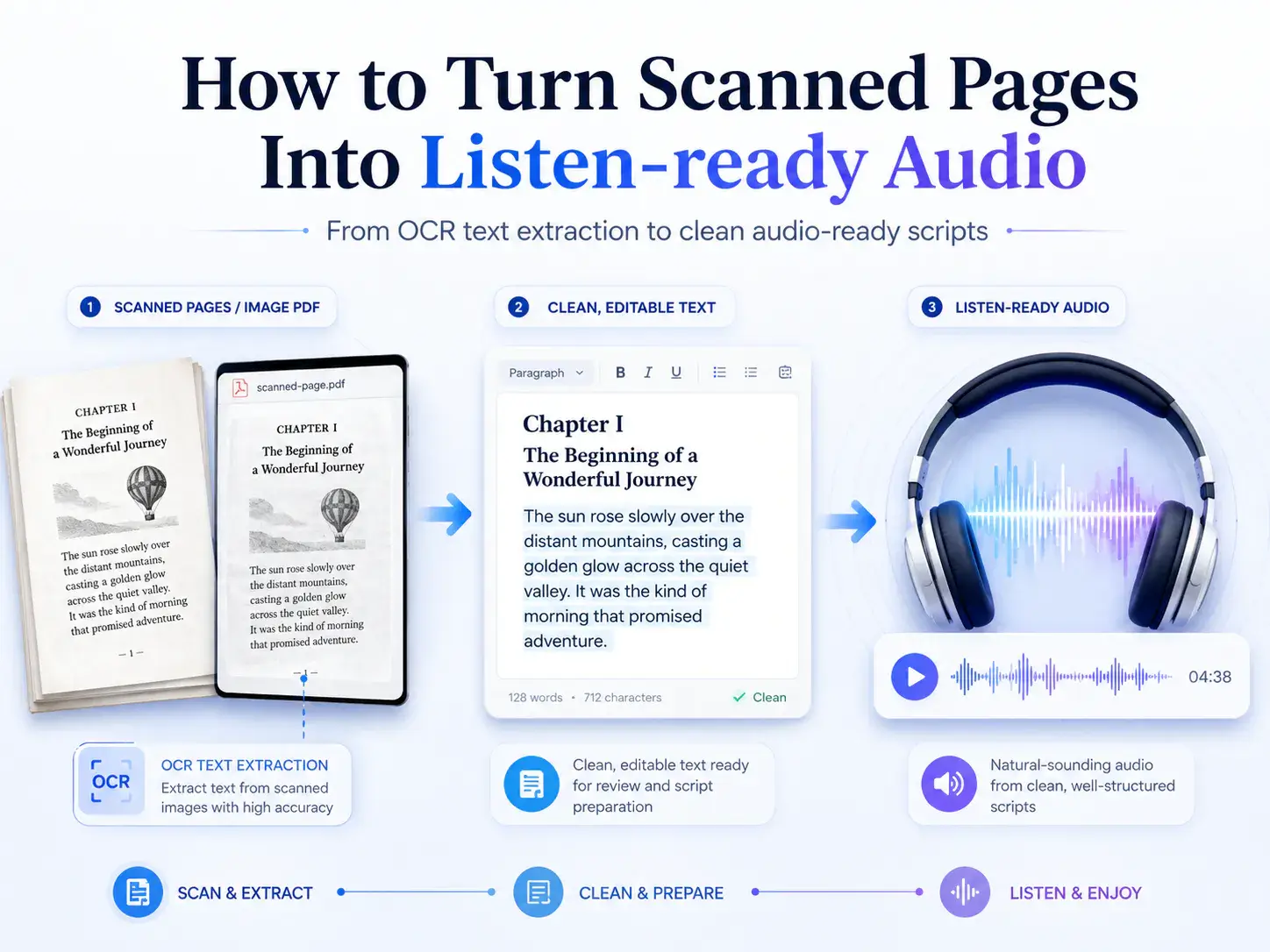
Scanned pages are easy to store but hard to reuse. A photo of a book page, an image-based PDF, a printed handout, or a screenshot may contain valuable information, but the text inside it is still trapped in an image. You can read it with your eyes, but you cannot easily edit it, search it, summarize it, translate it, or turn it into audio.
That is where OCR becomes the first step. By extracting text from scanned or image-based sources, you can move the content into a format that works with writing tools, note systems, AI assistants, and audio-generation workflows.
But there is an important detail many people skip: OCR text is not automatically ready for listening.
A raw OCR result may look acceptable on screen, but it often contains broken lines, page numbers, headers, footers, captions, table fragments, or strange spacing. If you send that directly into an audio tool, those problems will be read aloud. The result can sound awkward, mechanical, or confusing.
A better workflow is simple:
- Extract the text.
- Clean the text.
- Prepare it for listening.
- Then generate the audio.
This guide walks through how to turn scanned pages into listen-ready audio without treating OCR as a one-click shortcut.
Why Scanned Text Needs Preparation Before Audio
When we read scanned text visually, our brain naturally ignores many things: page numbers, repeated headers, footnotes, margin notes, broken line endings, or layout artifacts. Audio tools do not have that same judgment by default. If the text is messy, the narration will usually expose the mess.
For example, a scanned page might contain:
- Page numbers in the middle of the OCR output.
- Headers repeated every few paragraphs.
- Words split across lines.
- Footnotes mixed into the main text.
- Tables converted into unnatural sentence fragments.
- Image captions placed in the wrong position.
- Hyphenated words that should be joined.
These issues may not matter much if you only need a rough copy of the text. But they matter a lot when the goal is audio. Listening is linear. The listener cannot skim past a broken paragraph or visually separate a footnote from the main idea. Every unnecessary artifact becomes part of the experience.
That is why scanned pages should not be converted straight into narration. The better goal is to create a clean, readable script first.
Step 1: Extract the Text From the Scanned Source
The first step is to turn the scanned or image-based material into editable text. This may come from several types of sources:
- A scanned PDF
- A photo of a printed page
- A screenshot
- A lecture handout
- A research excerpt
- A printed essay
- A page from an old document
- A captured page from a report or manual
At this stage, the goal is not perfection. The goal is to get the text out of the image so you can inspect it and improve it.
Using an OCR tool such as Deep OCR helps you move from a visual document to copyable text. Once the text is extracted, you can compare it against the original source, correct recognition errors, and decide what should stay or be removed before the text is used anywhere else.
This review step is important. OCR can save a huge amount of manual typing, but it still needs human judgment when the source is complex, low quality, old, tilted, or heavily formatted.
A good extraction process should help you answer three questions:
- Is the main text captured correctly?
- Did the OCR include unwanted layout elements?
- Is the result clean enough to become a listening script?
If the answer to the third question is no, the next step is cleanup.
Step 2: Clean the OCR Result for Listening
Text that is good enough for reading is not always good enough for listening. A listener experiences the content one sentence at a time, so the text should feel smooth, coherent, and intentional.
Before turning OCR text into audio, clean it like a script.
Start by removing anything that should not be spoken aloud. This often includes page numbers, running headers, repeated footers, copyright notices from every page, navigation text, table labels, scan artifacts, and random characters produced by the OCR process.
Then fix the structure. OCR tools may preserve line breaks from the original page layout. That can create unnatural pauses when the text is later narrated. Join broken lines into complete paragraphs. Repair words split by hyphens. Make sure chapter titles, section headings, and paragraph breaks are clear.
You should also check names, technical terms, dates, abbreviations, and unusual words. These are common places where OCR mistakes can survive unnoticed. A single wrong character may not look dramatic, but in audio it can become obvious.
For long-form listening, structure matters even more. If the source is a chapter, essay, lesson, or report, divide it into sections. Add clear headings where appropriate. Remove anything that interrupts the main flow. If a table is essential, rewrite it into natural language instead of letting the audio tool read scattered cells.
A useful cleanup checklist:
- Remove page numbers.
- Remove repeated headers and footers.
- Fix broken paragraphs.
- Join split words.
- Delete irrelevant captions or layout text.
- Rewrite table content into normal sentences.
- Check names, terms, and abbreviations.
- Keep useful headings.
- Break long sections into manageable parts.
- Read the text once as if it were a spoken script. This is the step that turns "extracted OCR text" into "listen-ready text."
Step 3: Prepare the Text Like an Audio Script
Once the OCR result is clean, the next question is not just "Is this text correct?" but "Will this sound natural?"
Written text and spoken text behave differently. A dense academic paragraph may be readable on a page but exhausting to listen to. A list may look clean in a document but sound repetitive in narration. A long sentence may be acceptable in print but confusing in audio.
You do not need to rewrite everything. But you should make small adjustments that improve the listening experience.
For example, very long paragraphs can be split into shorter ones. Section transitions can be made clearer. Lists can be introduced with a short phrase. Ambiguous references can be clarified. If a scanned page includes side notes or parenthetical material, decide whether it truly belongs in the audio version.
You can also add simple cues for flow:
- "First..."
- "Next..."
- "The key idea is..."
- "In this section..."
- "To summarize..."
These small phrases help listeners follow the structure without looking at the original page.
The goal is not to turn every document into a dramatic performance. The goal is to make the content comfortable to hear.
Step 4: Convert the Clean Text Into Audio
After the OCR text has been extracted, cleaned, and structured, it is ready for audio testing.
At this point, you can move the prepared script into an Audiobook Generator to test narration, pacing, and chapter flow before producing a longer audio version.
This is where the workflow changes from document preparation to audio creation. Instead of asking the audio tool to solve messy OCR problems, you give it a clean source text that is already designed to be listened to.
A good first test is short. Do not convert an entire scanned document immediately. Start with one section or one chapter excerpt. Listen for:
- Awkward pauses
- Misread names or terms
- Sentences that are too long
- Sections that feel too dense
- Headings that interrupt the flow
- Text that still sounds like a scanned document rather than a script
After listening to the sample, revise the text before generating a longer version. This extra loop usually improves the final audio far more than changing tools or voices later.
What Kind of Scanned Content Works Best?
Not every scanned document should become audio. Some content is naturally more suitable for listening than others.
Good candidates include:
- Study notes
- Course handouts
- Public-domain books
- Personal essays
- Long-form articles
- Research summaries
- Training materials
- Internal documentation
- Language learning passages
- Lecture notes
- Personal knowledge archives
These formats usually have a clear reading order and can be cleaned into a smooth script. More difficult sources include:
- Complex tables
- Math-heavy pages
- Dense legal documents
- Documents with many footnotes
- Highly visual manuals
- Slide decks that depend on images
- Scans with heavy marginalia
- Poor-quality photos or tilted pages
These can still be processed, but they require more editing. In many cases, you may need to summarize or rewrite the material instead of converting it directly.
You should also be careful with rights and permissions. Only convert material you own, created yourself, or have permission to use. This is especially important for books, paid course materials, and copyrighted publications.
A Practical OCR-to-Audio Workflow
Here is a simple workflow you can follow when turning scanned pages into audio.
1. Choose the right source
Start with a scan, screenshot, or image-based PDF that has a clear reading order. If the page is blurry, tilted, or filled with layout noise, the OCR result will need more cleanup.
2. Extract the text
Use OCR to turn the visual text into editable text. At this point, do not worry if the result is not perfect. Focus on getting the main body text out of the image.
3. Compare with the original
Look at the OCR result beside the source. Check whether any paragraphs are missing, duplicated, or placed in the wrong order.
4. Remove non-spoken elements
Delete page numbers, headers, footers, captions, table fragments, and anything else that would sound strange if spoken aloud.
5. Repair the structure
Fix broken lines, join split sentences, restore paragraph breaks, and keep meaningful headings.
6. Make it listenable
Shorten overly dense sections. Add transitions if needed. Rewrite lists or tables into natural language.
7. Generate a short audio sample
Test one section before converting the entire document. This helps you catch pronunciation, pacing, and structure problems early.
8. Revise and export
After listening, adjust the text and generate the final audio version.
This workflow keeps each tool in the right role. OCR extracts the text. Cleanup prepares the script. Audio generation turns the cleaned script into something people can actually listen to.
Common Mistakes to Avoid
The biggest mistake is treating OCR-to-audio as a single-step conversion. Technically, you can extract text and immediately generate audio, but the result is often poor because the source text was never prepared for listening.
Another common mistake is leaving page-level artifacts in the script. Page numbers, running headers, and repeated footers may look harmless in a text file, but they become distracting when narrated.
A third mistake is converting too much at once. If you process a long document before testing a short sample, you may only discover problems after the full audio has already been generated.
You should also avoid keeping complex tables as raw OCR text. Tables rarely sound good when read directly. If the information matters, rewrite it into normal sentences.
Finally, do not assume that a clean-looking OCR result is accurate. Names, dates, technical terms, and foreign words deserve extra attention because they are easy to misread and easy to notice in audio.
Final Thoughts
Turning scanned pages into audio is not just a technical conversion. It is a content preparation workflow.
OCR helps unlock text from images, scanned PDFs, screenshots, and printed pages. But the extracted text still needs to be reviewed, cleaned, and shaped into something that works for the ear, not just the eye.
If you treat OCR as the first step rather than the whole process, the final audio becomes much better. The text flows more naturally, the narration sounds cleaner, and the listener does not have to struggle through page numbers, broken lines, or layout artifacts. The best workflow is simple:
- Extract the text clearly.
- Clean it carefully.
- Prepare it like a script.
Then turn it into audio. That is how scanned pages become listen-ready content.