
Practical OCR workflows
Instagram Cleanup: Save Screenshot Text Before You Unfollow
Keep the ideas worth saving. Review the accounts you follow. Use a different source of evidence for each job.
A source-checked workflow guide, not a product benchmark or an account-security audit. Examples below are illustrative, not measured OCR results.
For a useful Instagram cleanup, separate content from connections. If a recipe, reading list, or event detail survives only in a screenshot, OCR can turn the visible words into searchable notes. If you want to find accounts that do not follow you back, use your official followers and following export—not OCR of a scrolling account list.
These tasks can belong to the same tidy-up session, but neither depends on the other. Unfollowing an account is not the same as deleting your screenshots. Saving text first is a way to preserve useful context, not a required step for unfollowing or a complete Instagram backup.
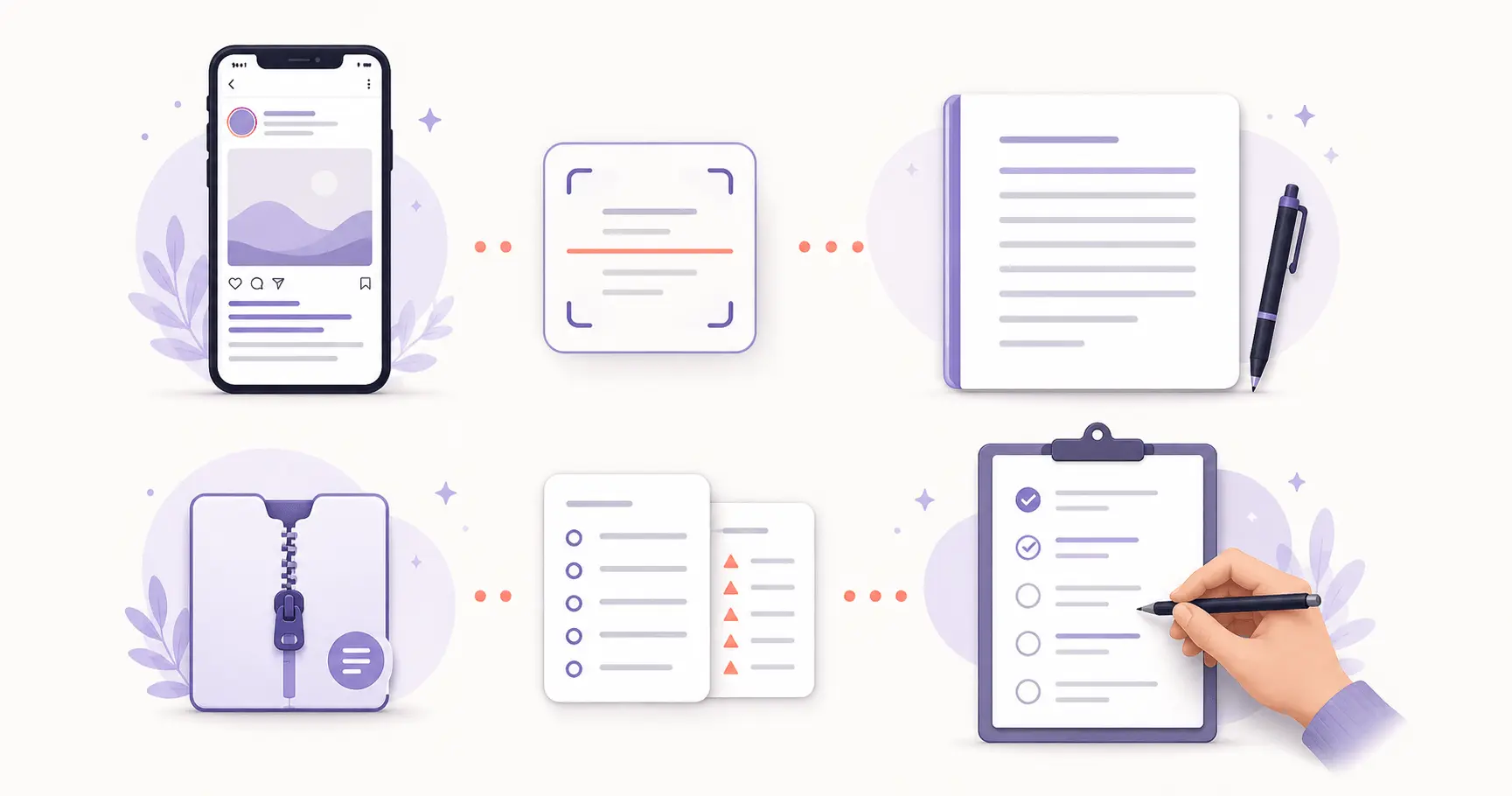
Choose the right source: text, screenshots, or an export
Start with the simplest reliable source. If a caption can already be selected and copied, copy it directly. Converting readable digital text into an image and back again only adds opportunities for mistakes.
- Selectable caption or existing text file: copy the text and retain its source. No OCR is needed.
- Words embedded in a screenshot or image: use screenshot OCR, then compare the output against the image.
- Followers and following: use the relationship files from your official account export. Partial screenshots cannot establish a complete list.
- A broader account archive: request the relevant information from Instagram. A folder of OCR notes does not replace original media or account records.
A creator might save useful reference notes while separately reviewing a brand account’s following list. A personal user might keep a recipe but stop following its author. The note records useful content; the relationship review answers a different question.
Save useful Instagram screenshot text in five steps
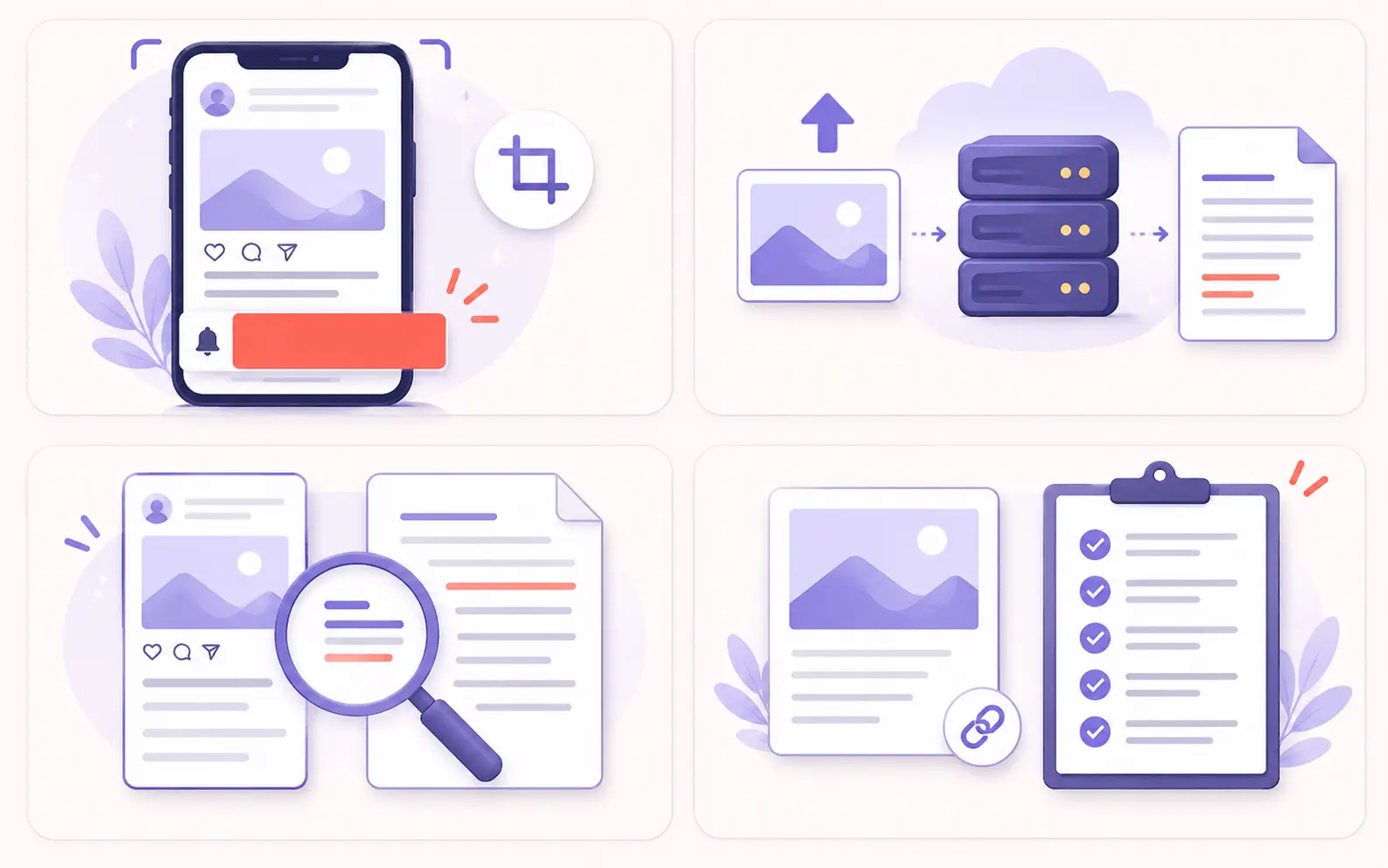
1. Capture the words you actually need
Expand a caption before taking a screenshot if the rest of the text is available. Use the original-resolution capture rather than a compressed repost. For a long passage, take separate readable screenshots with a little overlap, then remove duplicated lines during review.
OCR can read only what appears in the image. It cannot reveal words hidden behind “more,” recover deleted posts, or reconstruct a missing slide. If the text is too small or blurry to verify yourself, obtain a clearer source rather than guessing.
2. Crop and redact before selecting a file
Remove irrelevant navigation, notifications, profile pictures, and private details. If a screenshot contains messages, email addresses, or other people’s information, use only material you are authorized to process and redact what is unnecessary. Save a flattened, redacted copy and inspect it before upload.
Deep OCR sends images to a server for recognition. It is not an on-device-only workflow. File selection starts processing, so privacy preparation must happen before you choose the image—not after you see the result.
3. Extract the visible text
Open Deep OCR’s screenshot-to-text tool and select one prepared image. The current uploader accepts PNG, JPEG, WebP, and GIF files up to 10 MB; a clear PNG or JPEG is a practical choice for this workflow. Process additional screenshots individually.
Keep your source image available for comparison. Do not upload an Instagram export ZIP to the OCR uploader: an account archive is not an image, and the two workflows do not exchange files automatically.
4. Proofread before you reuse the result
Check names, dates, quantities, punctuation, and reading order. A missing decimal point can change a recipe; a confused underscore can point to the wrong username. Treat account handles, web addresses, emoji, and stylized lettering as fields requiring extra review.
Copy the output into your own editor to correct it. Join line breaks that split a sentence, but preserve meaningful list items. For a fuller editing checklist, see how to clean up messy OCR text.
5. Save the note with its source
Use the copy, TXT download, or Markdown download option. Add the original post URL if available, the capture date, a short topic label, and any uncertainties. If all you have is a screenshot, say so rather than inventing a source address.
Keep the original image until you have checked the saved text. For multi-part notes, a Markdown workflow can make headings and source links easier to organize. Exporting Markdown does not remove the need to check the transcription.
A worked example: keep the note and its context
Imagine a screenshot of your own event announcement. The following is a deliberately constructed example, not a claim about Deep OCR’s measured output or accuracy.
Text visible in the example image
Studio workshop
24 October, 10:30 AM
Bring 1 notebook.
Possible transcription to check
Studio workshop
24 October, 1O:3O AM
Bring I notebook.
The letter O has replaced a zero, and a capital I has replaced the number 1. Correct these only after checking the source. If the original is unclear, mark the field as uncertain rather than silently filling it in.
A useful saved note includes
- Verified text: Studio workshop — 24 October, 10:30 AM. Bring 1 notebook.
- Source: your post URL, or “original screenshot only” if no link is available.
- Capture date: the date you saved the screenshot, not an assumed publication date.
- Review status: date, time, and quantity checked against the image.
- Context: why you kept it, plus any details that still need confirmation.
This is more useful than an anonymous text dump: you can search it later, trace a correction, and distinguish what the image says from your own notes.
Review your following list separately—with an official export
Once your useful notes are organized, you can review the accounts in your feed as a separate task. Do not build the review from OCR-recognized usernames: screenshots may omit accounts, repeat rows, or contain misread handles.
Instagram’s official information-export instructions place this process in Accounts Center, under Your information and permissions → Export your information. Create an export, select the correct profile, and choose export to device. Interface wording can change; use the official instructions if your screen differs.
For a relationship comparison, include both followers and following. Check the selected date range and categories rather than assuming any downloaded archive is complete. Keep the original ZIP as your reference and record when it was generated.
Instagram Cleaner is one option for the next step: its published workflow accepts an Instagram export ZIP, compares followers with following, and lets you download a CSV review list. The site says it processes the archive locally in your browser without asking for an Instagram login or password. Those are the provider’s stated features, not an independent security certification from Deep OCR.
The comparison answers a narrow question: which usernames appear in following but not in followers in that export? It does not show who viewed your profile, explain why someone does not follow you, prove an account is a bot, or establish who recently unfollowed you from a single snapshot.
Review profiles individually. News sources, artists, educators, and brands can remain valuable even when they do not follow you back. Keep exceptions for your interests, and confirm the current profile before taking action if the export is old. Instagram Cleaner describes its output as a manual review list, not an automatic unfollow command.
There is no direct integration between these tools. Your OCR notes preserve content; your export supports a relationship comparison. Neither makes the final decision for you.
A privacy and accuracy checklist before cleanup
- Minimize the input. Process only the screenshot region or export categories needed for the task. Keep unrelated private messages out of both workflows.
- Do not confuse privacy models. Deep OCR uploads images for processing. Instagram Cleaner states that its export comparison is local. A claim made by one tool does not apply to another.
- Keep credentials out of third-party tools. Request the export through Instagram’s own interface. Do not send an account password, session cookie, or two-factor code to an OCR tool or export-comparison service.
- Verify before removing anything. Open the saved note, check important fields, and retain the original source until satisfied. Never use OCR text alone as proof of a complete follower relationship.
- Respect rights and context. Extracting text does not grant permission to republish another person’s work. Retain attribution and obtain permission where required.
- Store results deliberately. A CSV of usernames and a folder of screenshots may contain personal information. Keep them in a location you control rather than a publicly shared folder.
Common questions
Can I copy text from an Instagram screenshot?
Yes, OCR can attempt to recognize the visible words and make them copyable. Results depend on the source image. Check the transcription, especially usernames, numbers, and text over busy backgrounds. Use direct copying instead if the original text is already selectable.
Can OCR tell me who does not follow me back?
Not reliably from screenshots. That requires comparing complete followers and following records from the same account export. OCR recognizes visible characters; it does not query Instagram’s relationship data.
Does this workflow automatically unfollow accounts or delete posts?
No. Deep OCR extracts image text. Instagram Cleaner describes an export-based comparison and manual review workflow. Account decisions remain separate; do not treat either tool as an automatic cleanup service.
Is saving OCR text the same as backing up my account?
No. OCR notes omit original media, hidden text, and account records. For a broader archive, request the relevant information from Instagram and verify the downloaded files. The official help page also notes that some deleted information will not appear in an export.
Sources and editorial method
This guide was prepared for Deep OCR using its current frontend upload and export behavior, Instagram’s official export instructions, and Instagram Cleaner’s public product description. Sources were reviewed on October 18, 2026. No live Instagram account was connected, no private export was tested, and no OCR accuracy benchmark or third-party security audit was performed for this article.
The official Instagram help page linked above supports the account-export instructions. The Instagram Cleaner product page linked in the comparison section is the source for that provider’s features and local-processing claim. The example is synthetic so that no real account information is exposed.
About the publisher: Deep OCR publishes guides about extracting and preparing text from images and documents. This article discusses our own OCR interface; it is a workflow explanation, not an independent review of Deep OCR.